Workflow & plans
A session is a conversation with a paper trail. Learn the workspace, how plans get approved, and how to steer the agent while it works.
The workspace
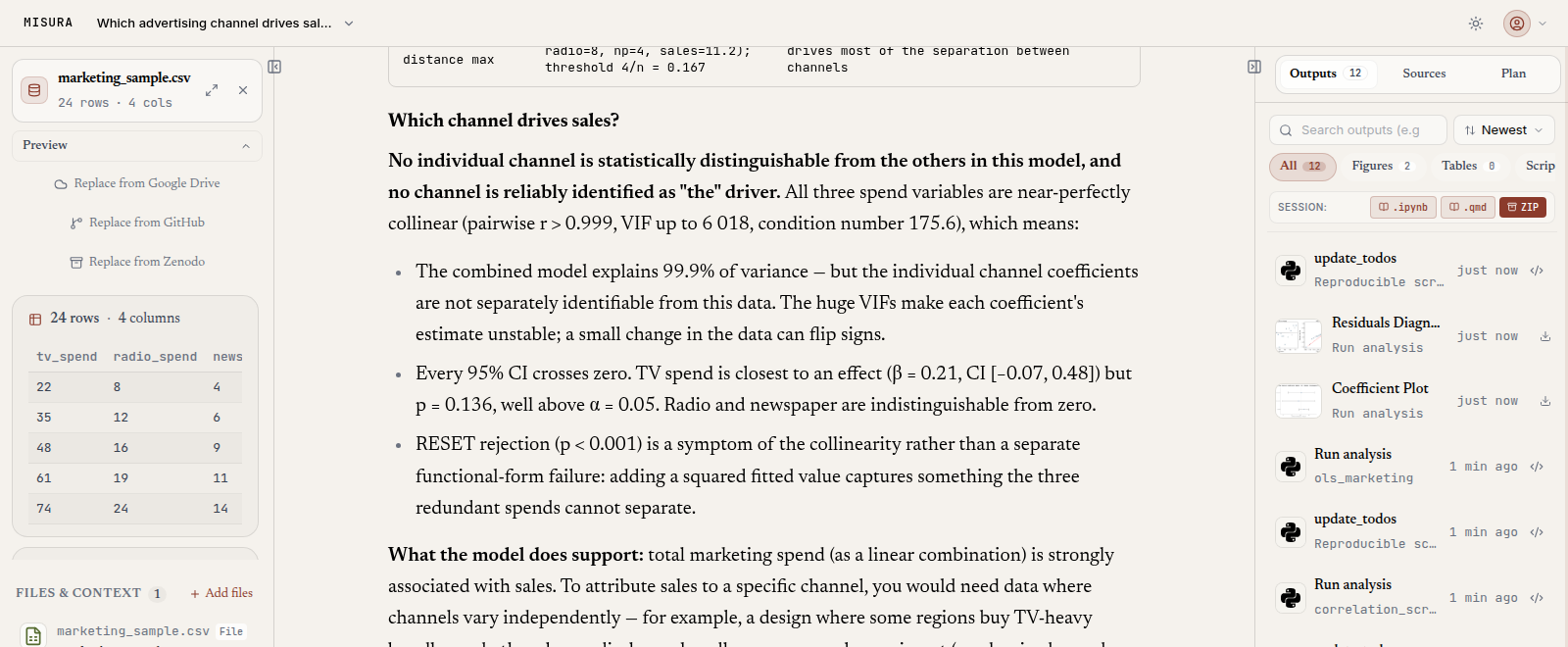
Three panes. Left, centre, right.
- Left: your data. The dataset chip with name, rows, columns, missing count, and source. The dataset-change card. The preview. Files & Context. This panel opens when you load a dataset.
- Centre: the conversation. Messages, the thinking trace, the live turn, the composer at the bottom.
- Right: the work. Outputs, Sources, and Plan. Figures, tables, scripts, reports, and bookmarked evidence live in Outputs. Literature and files live in Sources. Plans, progress, and key decisions live in Plan. This panel opens on your first figure or compiled output.
Drag the panel edges to resize. Collapse a panel and it becomes an icon strip. On narrow screens the panels turn into drawers. Closing a panel is remembered. It will not reopen on its own. The sandbox dock sits at the bottom of the right panel while a run is going, then collapses to a floating pill.
Sessions and projects
Open the session switcher from the title in the top bar. Choose New Session to start clean, or search and select a session to resume it. Use the row menu to star, rename, move, archive, or delete; create and organize projects from the same switcher. For search, bulk actions, archive recovery, and deletion effects, followManage sessions and projects.
A session with a dataset and a research question is the unit reports and exports are built from. The default is eight concurrent analyses; the server can be configured to use another limit or no limit. At the configured limit, a new turn is refused until one finishes or is stopped. If capacity is unexpectedly unavailable, see analysis capacity troubleshooting.
Plans: propose, review, Go
For a substantial analysis, ask the agent to propose a plan before running it. When a plan is waiting, the Plan tab shows its steps and says Nothing runs until you press Go. Use this sequence:
- Read the method, assumptions, checks, and outputs. Revise any decision that does not fit your question or data.
- Choose Review and revise, enter what should change, and send the revision. The updated plan appears in the Plan tab; review it again.
- Choose Go only when the plan is acceptable. The plan changes to approved and its step progress updates as work runs.
If Go is disabled or approval is not sent, reconnect and try again; see plan approval troubleshooting. Earlier plans remain readable in plan history.
The agent also keeps a working checklist of its own, up to 20 steps. That list needs no approval. It is the agent's scratchpad, shown in the Plan tab as pending, in progress, done, or skipped. A skipped step has to say why. Key decisions get logged too. Method, data, assumption, scope, limitation. They appear in the Plan tab and feed the learning pass in Memory & conventions.
While a turn is running
The composer stays live. You can queue a correction, stop the turn, select text to follow up, or mark the answer.
- Queue a message. While Mizura is working, Send becomes Queue message. Queued messages sit above the composer with edit, delete, and Send now. A queued message is visible there; use Send now to interrupt the current turn and send the correction immediately.
- Stop. Ends the turn and any Python still running. The partial answer remains and is labelled Response stopped by you. The composer is free again. A stopped run is recorded as stopped, not as a timeout.
- Quote and follow up. Select text in an answer to quote it in the composer, ask the agent to explain it, copy it formatted, or bookmark it as evidence in Outputs.
- Mark an answer. Thumbs up or down records a temporary mark in the open message view. The current frontend does not send or persist this rating; it is lost when that view resets. There is no prompt-sharing control in workspace settings.
Connection drops do not kill a turn. The agent keeps working. Reconnect and the full state comes back. A Reconnecting… pill shows reconnection status. If a second window takes over the session, the first one stands down instead of sending a duplicate turn.
The composer
Type your request in the composer. Use @ to insert references to session data or results, or / to choose a prompt starter or workspace action. Attach supplementary files with the plus button. See Keyboard shortcuts and commandsfor the exact catalog and dictation steps.
Enter sends; Shift+Enter starts a new line. Verify critical findings; generated answers can contain mistakes. See Evidence & literature for what gets checked, and the composer guidefor keyboard actions.
To find, inspect, or download a generated item later, use Find and manage outputs.
Keyboard shortcuts
The Keyboard shortcuts and commands guide is the canonical shortcut list. For output-viewer navigation, see Find and manage outputs.